
ZIP upload or Git import
Bring your project files to Staticbot
Upload one ZIP archive or use your existing Git repository. Bring the exports and content you have; Staticbot will inspect the inputs and help with the next steps.
Platform instructions checked October 16, 2026. Controls and plan availability can change.
You do not need to rebuild the website first
Bring your website export, content XML or CSV, images, original assets and any other available project files. They do not have to form a finished website. Staticbot saves and inventories the inputs, identifies available builder and content-export signals, and requests a review.
Our team will help prepare the website and decide the next steps. Uploading files does not start an automatic conversion or deployment.
1. Put the files you have together
Start with your platform’s export guide. Keep the downloaded website ZIP and any separate content exports. Add the available images, files and backups you own. If something is missing, tell us in a short text file rather than rebuilding pages yourself.
my-project/
  website-export.zip
  collection.csv
  content.xml
  original-images/
  notes.txt
This is an example, not a required structure. Include the files you actually have. Your note can contain the site URL, features you want to keep and any gaps. Keep account passwords, private keys and unrelated personal files out of the package.
2. Choose ZIP upload or Git import
Have downloaded files?
Create one ZIP archive containing the folder. Existing ZIP files can stay zipped inside it. If you only have one export ZIP, upload that directly. Use an unencrypted ZIP up to 100 MB.
Upload your projectSign in, enter a project name and select the ZIP. No Git account is required.
Already use Git?
Add the exports and original assets alongside your existing website files in GitHub or GitLab. CSV, XML and nested ZIPs can stay as they are. Commit them to the branch you want to import.
Import your projectSelect the repository and branch containing your files. You can switch to upload if you prefer an archive.
3. Staticbot inspects the inputs
Staticbot lists the files, looks for website-builder and content-export signals, and inspects nested ZIPs within extraction limits. Your original inputs stay available for review, and your project shows the file inventory.
If you arrived from a website check, that scan is linked as another source of information. A builder detected in the live site and a builder detected in the uploaded files are separate observations.
A file inventory is not a completed migration. Incomplete, encrypted or unsupported nested archives are marked for review. We will help identify missing content and decide how to prepare the independent website.
4. Review the prepared website, then deploy
Once the website is prepared, check the preview together with the features you need: pages, images, forms, galleries, blog content, checkout and access controls. Keep the old site and your original exports until the replacement is verified.
The existing hosting walkthroughs explain deployment of a ready static site:
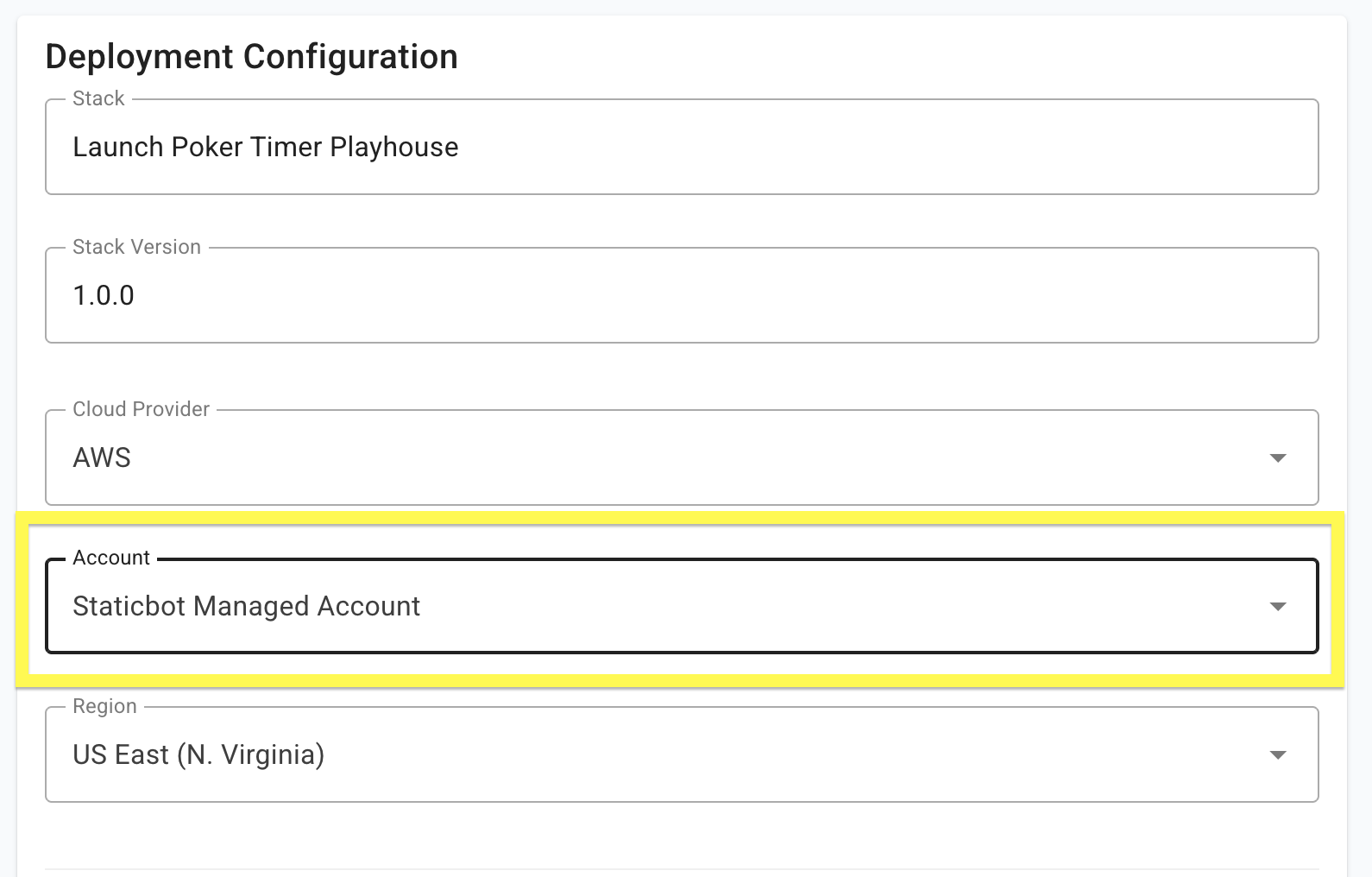
- Staticbot-managed AWS — no AWS account connection required.
- Your own AWS account — infrastructure you own.
5. Connect your custom domain after verification
Follow the custom-domain guide with the DNS values Staticbot supplies. Preserve email records, test HTTPS on the real hostname and agree how future website changes will be made. A provider-owned subdomain cannot be transferred; use a domain you control or the new deployment URL.
Missing part of the export? Tell us what you have and what is missing. You do not need to solve the conversion before bringing the files to Staticbot.