
Connect Staticbot to Claude
Add Staticbot to Claude once, and Claude can guide a Lovable or Base44 migration from an ordinary chat: a test migration first, your approval at each decision, and a working preview at the end.
MCP
Add the Staticbot connector
No API key and nothing to install. You sign in to Staticbot; if you don't have an account yet, one is created when you first connect.
- 1
Open Plugins and add a custom connector
In Claude, open Plugins in the sidebar, then choose Add → Add custom connector. On Team or Enterprise, an authorized workspace owner adds it first.
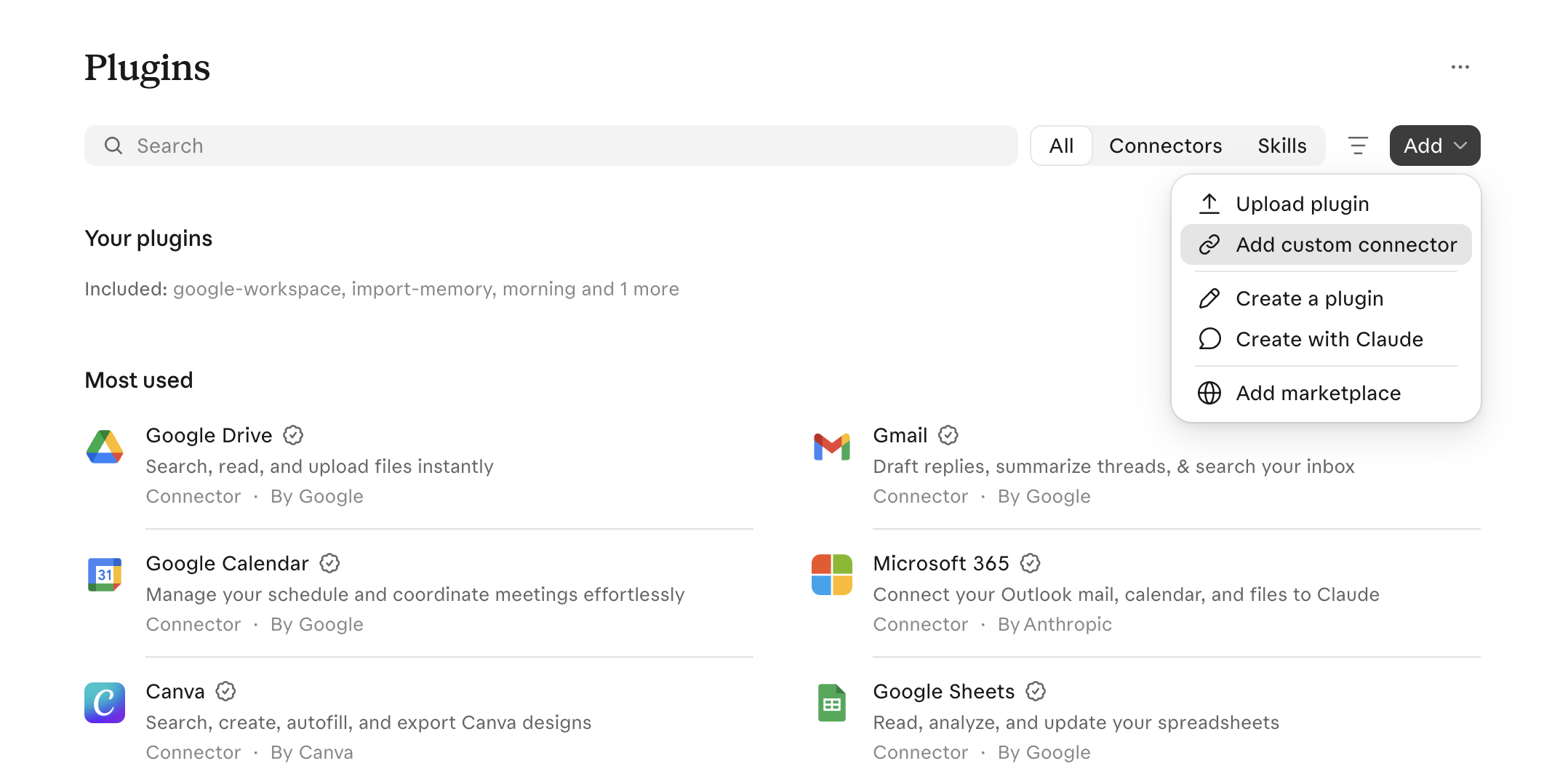
Plugins → Add → Add custom connector. - 2
Name it Staticbot and enter the server URL
Server URLhttps://mcp.staticbot.dev/mcp
Claude checks the server. A
401on the first check is expected: Staticbot wants you to sign in. Choose Continue when you see Server found.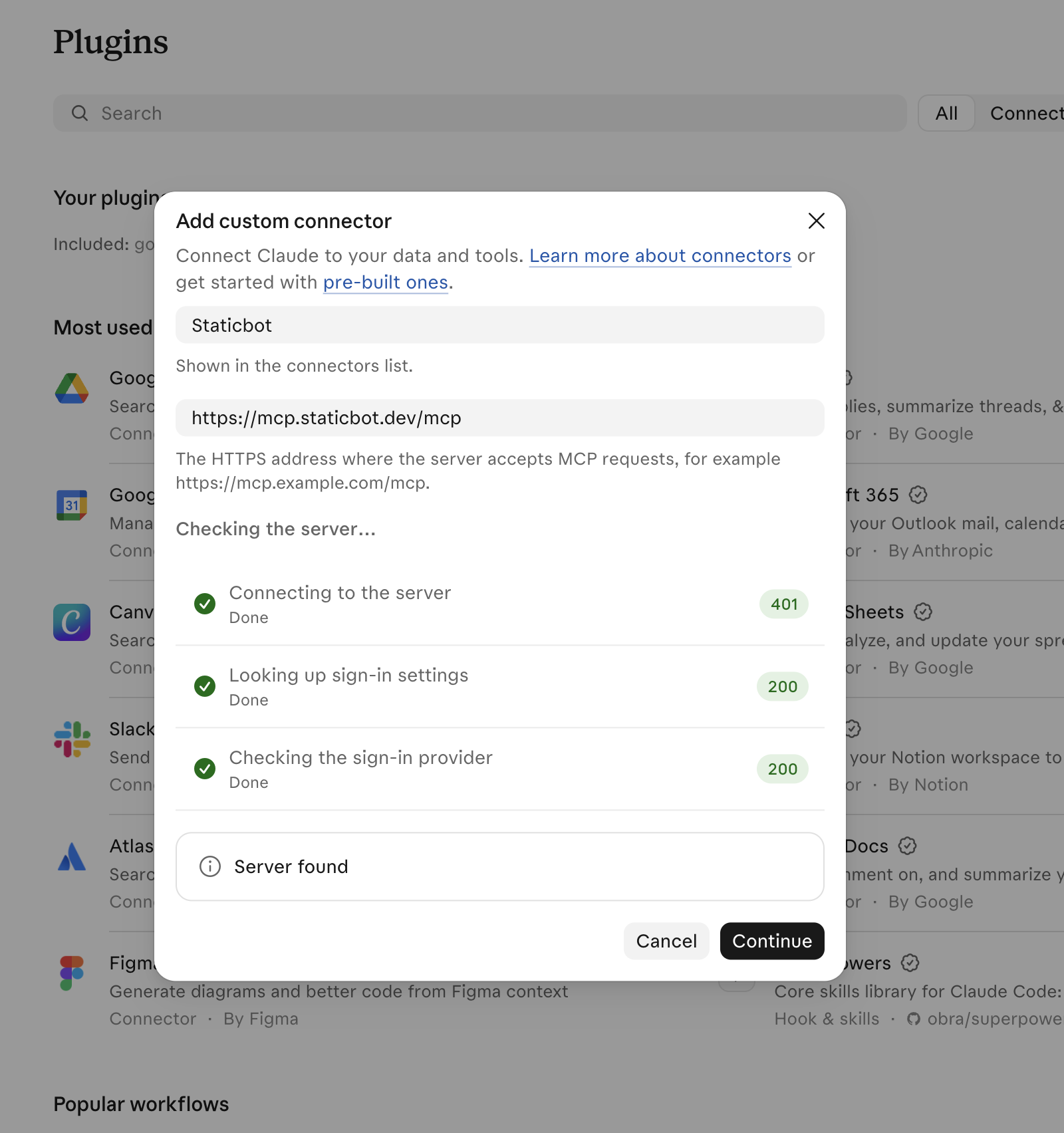
Server found. The 401 is Staticbot asking for sign-in. - 3
Choose Use your own OAuth client
Keep Authentication on Sign in now. Under OAuth client, choose Use your own OAuth client and paste this as the OAuth client ID:
OAuth client IDstaticbot-claude
Leave the client secret and request headers empty.
Claude may mark Register automatically as Detected. Don't choose it: Staticbot doesn't support automatic registration, so the connection wouldn't sign in.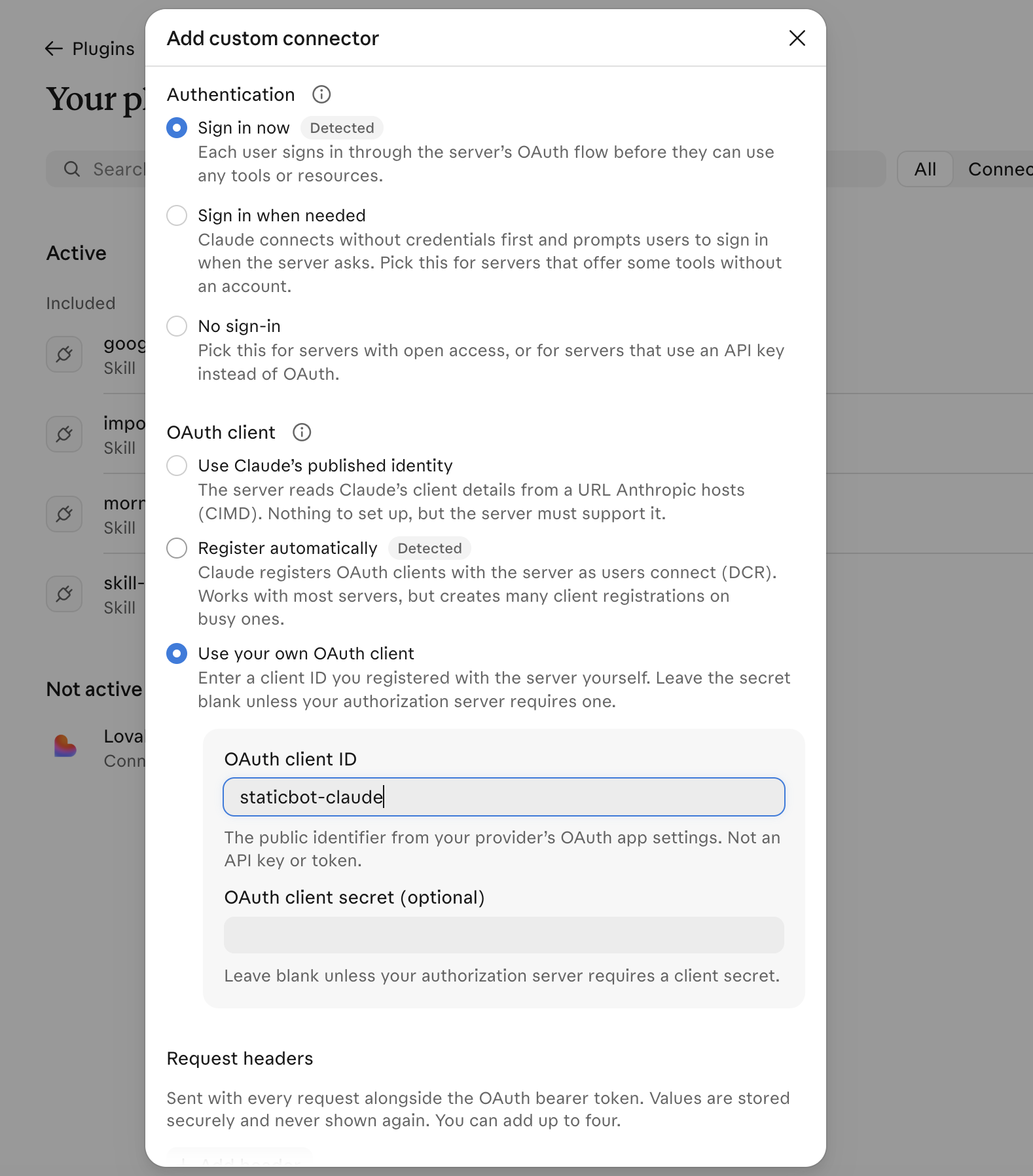
Sign in now, then Use your own OAuth client with staticbot-claude. - 4
Sign in to Staticbot and choose Yes
Staticbot asks you to grant Claude read access to your workspace, permission to create and manage migrations, deployments and sync runs, and offline access so you stay connected. Write access doesn't skip the safeguards: Staticbot still stops for your decision at discovery, destructive database changes and failures.
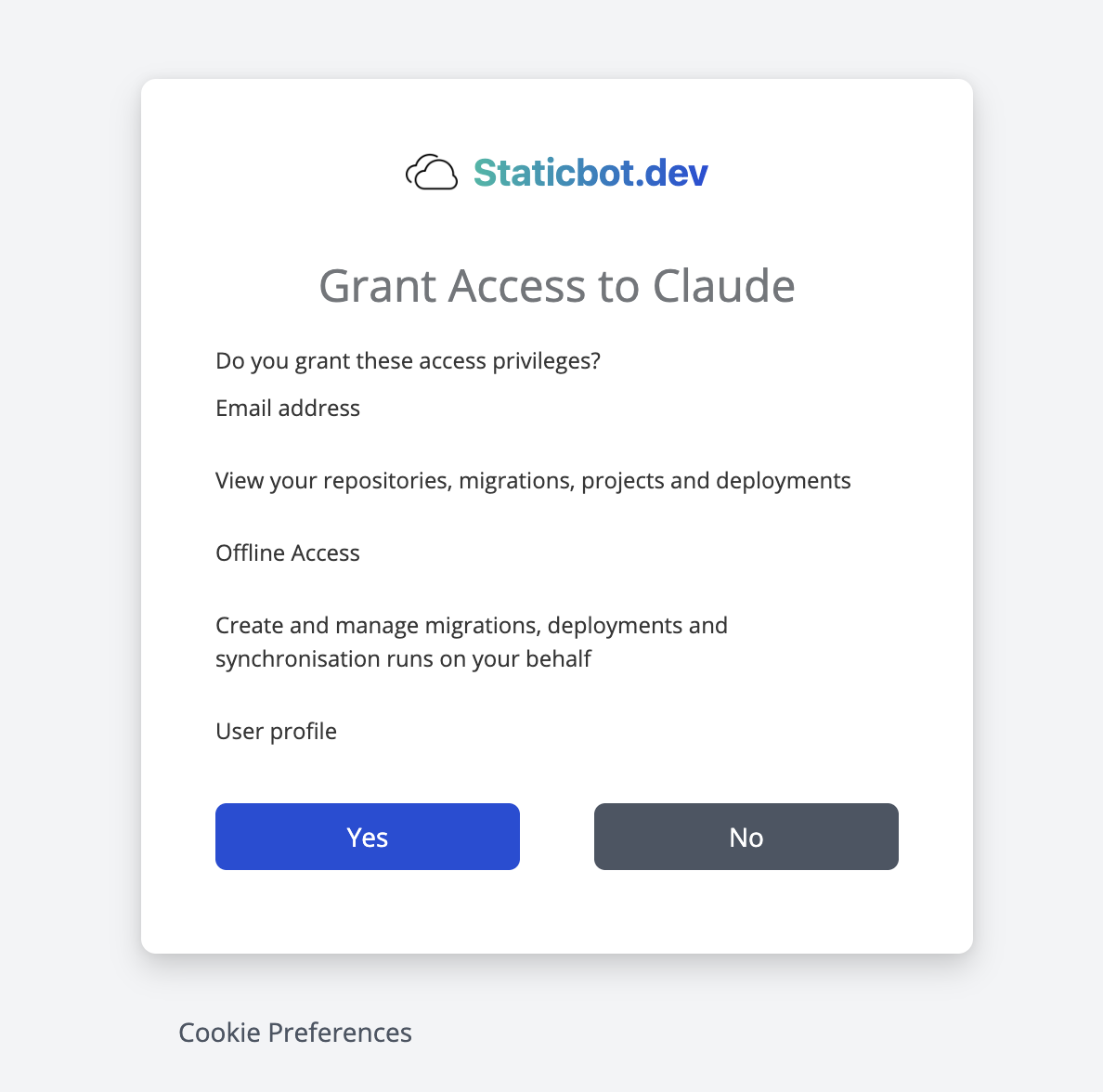
Staticbot's consent page. - 5
Check that it says Connected
Open Staticbot under Your plugins. It shows Connected, with its read-only and write tools listed. If it appears under Needs attention with Couldn't connect, choose Connect and sign in again.
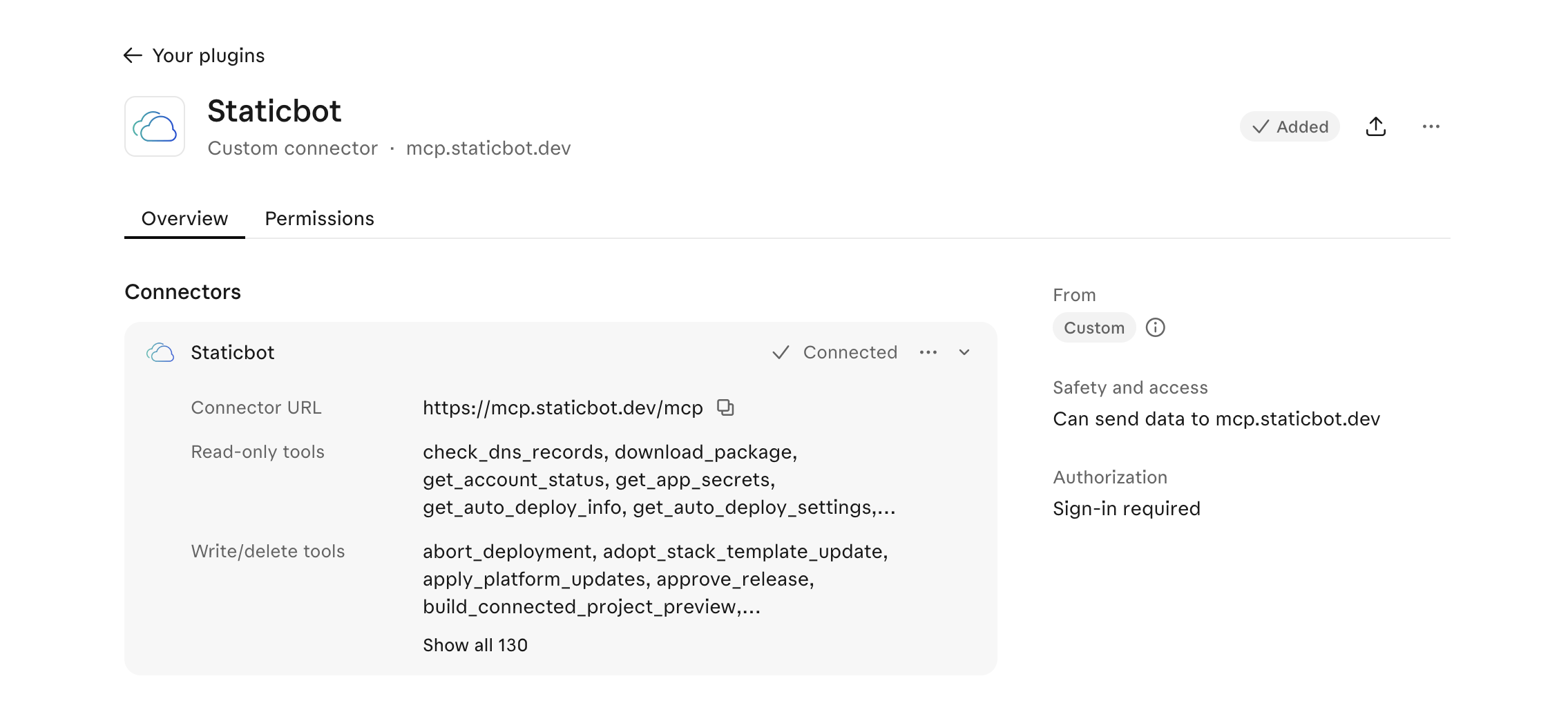
Connected, with Staticbot's tools listed. 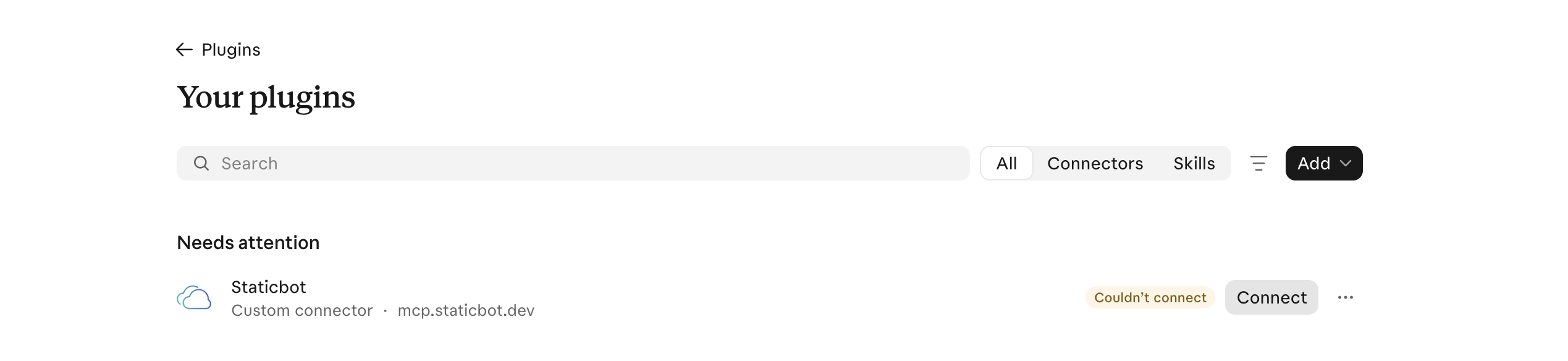
Couldn't connect? Choose Connect to sign in again.
Skills
Add the Staticbot skills (optional)
The connector already gives Claude the guided migration workflow. Add the skills if you also want Staticbot's deployment, Continuous Sync and live-move workflows in your chats. Plugins are available on Claude's paid plans.
- 1
Add the Staticbot marketplace
In Plugins, choose Add → Add marketplace → Add from a repository, and enter:
Repositorybitfiction/staticbot-mcp
- 2
Add the Staticbot plugin
Open Discover, select Staticbot, and choose Add.
Start a migration
Paste the migration prompt into a new Claude chat with Staticbot turned on. It runs a test migration to a separate Supabase project, stops for your approval at each decision, and ends with the migration ID and a preview URL to try. Keys and secrets go into the Staticbot dashboard, never into the chat.
Rather not use an assistant? Start in the Staticbot dashboard.