
Squarespace website content
Move your Squarespace website to Staticbot
Bring your Squarespace XML export, available assets and notes to Staticbot. Upload one package or use Git without converting the content into website pages first.
Platform instructions checked October 16, 2026. Controls and plan availability can change.
Content XML · rebuild required
What you can bring across
An XML content export in WordPress format. It is a content backup, not your finished website design or an HTML package. You do not need to move to WordPress to use your own content.
Bring the files you have in one ZIP, or use your existing Git repository. Staticbot will inspect the inputs and request a review. You do not need to rebuild the website before submitting it.
Before you start
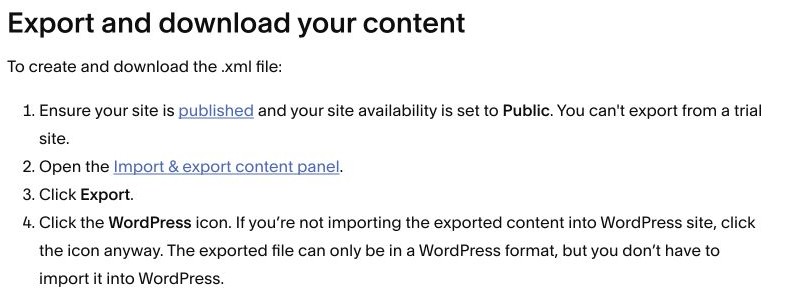
- Owner or appropriate administrator access to a published, public Squarespace site. The documented export is unavailable for trial sites.
- Copies of your original images, downloads and other media, plus an inventory of pages and any store, membership or scheduling features.
Bring the files you already have
Open Import & export content
Use the Import & export content panel linked in the official Squarespace instructions below. Check that you selected the correct published, public site.
Create the XML export
Choose Export, then the WordPress icon. That is the file format even when your destination is Staticbot. If asked, select the primary blog; only one blog is included.
Download and collect the files you have
Choose Download once the export is ready. Put the XML, your available original images, downloads and any other exports in one folder. Include a text note with the site URL and anything missing. You do not need to turn the XML into HTML yourself.
Create one archive, or use your existing repository
ZIP the folder, leaving existing archives inside if convenient. If you already use Git, add the XML and assets alongside the website files instead. Do not commit passwords or private keys.
Bring the package to Staticbot
Use Upload your project or the Git import form. Staticbot identifies the content and available website files, retains the inventory with your scan context, and requests a review. Our team will help prepare the website and the next steps.
Features to review before moving
- Design settings, custom CSS and several page and block types do not export. Store pages and a working checkout are not included.
- XML image references can still depend on Squarespace. Include any original images you have; we will review missing assets and image URLs with the rest of the package.
- Moving a Squarespace-registered domain is separate from moving website content. Keep email and domain renewal working during the move.
Check the preview before changing DNS
Check the number of rebuilt posts and pages against your inventory, open older articles, and confirm images load from your new deployment. Reconnect forms, bookings and any paid-content access before sending visitors there.
Keep the old account and your backups until the replacement works. You can connect a custom domain you control after testing; the provider’s own subdomain stays with the original platform.
Next: bring your files to Staticbot
Choose the separate ZIP upload or Git import form. Staticbot keeps the package and its inventory for review. Once the website is prepared, the existing hosting guides explain previewing and deployment.
Upload or import your files