



Migrate from Lovable Cloud to Supabase
Updated September 25, 2026
Moving from Lovable Cloud to Supabase means copying your backend into a Supabase project you own: the database schema and data, auth users (including password hashes and Google or other OAuth identities), storage files, edge functions and secrets. Staticbot does this automatically and for free in about 15 minutes, then shows you the migrated app running on a preview URL before anything changes for your users.
Prefer to do it yourself? The manual migration guide covers the same steps with the Supabase CLI and takes about 2–3 hours. If the app already has real users, also read how to move a live app before switching production.
Migrate Lovable Cloud to your own Supabase — and see the migrated app running before you commit to anything.
Lovable now ships an official Cloud Data export, and Staticbot reads it directly: point it at your repo and a target Supabase project and it restores the snapshot — schema, RLS policies, triggers, data, and the full auth schema with password hashes — then carries over everything the dump doesn't hold: Edge Functions, storage files, vault secrets, cron jobs, and auth provider config. No export file? It replays your repo's migration files instead and pulls the data out through a temporary edge function; your source service-role key never leaves your Lovable project. ~15 minutes either way.
Staticbot then rewrites your app's Supabase credentials on a staticbot/live branch, deploys it to a preview URL and health-checks it — so you look at the migrated app working on your own backend before deciding where it lives. From there, host the frontend on your own AWS (or on Staticbot-managed AWS or Cloudflare Workers). Optionally keep editing in Lovable afterward — Continuous Sync flows every push to your own production backend. Migrations are currently free. Prefer to do it yourself? Follow the manual 8-step CLI guide.
Comparing tools? See Staticbot vs Dreamlit. Pricing: Lovable · Supabase · Staticbot
Optional: run this migration from Lovable chat instead
The guide below covers the technical migration in Staticbot. For an app with live users, also follow the linked live-migration checklist before switching production. If you would rather not switch tools, you can add Staticbot as an MCP server in Lovable's Connectors screen and have Lovable's own assistant drive the same migration from chat. Same result, same steps, different place to click. Purely a convenience, and you can skip it entirely.
Walkthrough: Staticbot inside LovablePrerequisite: connect your Lovable project to GitHub
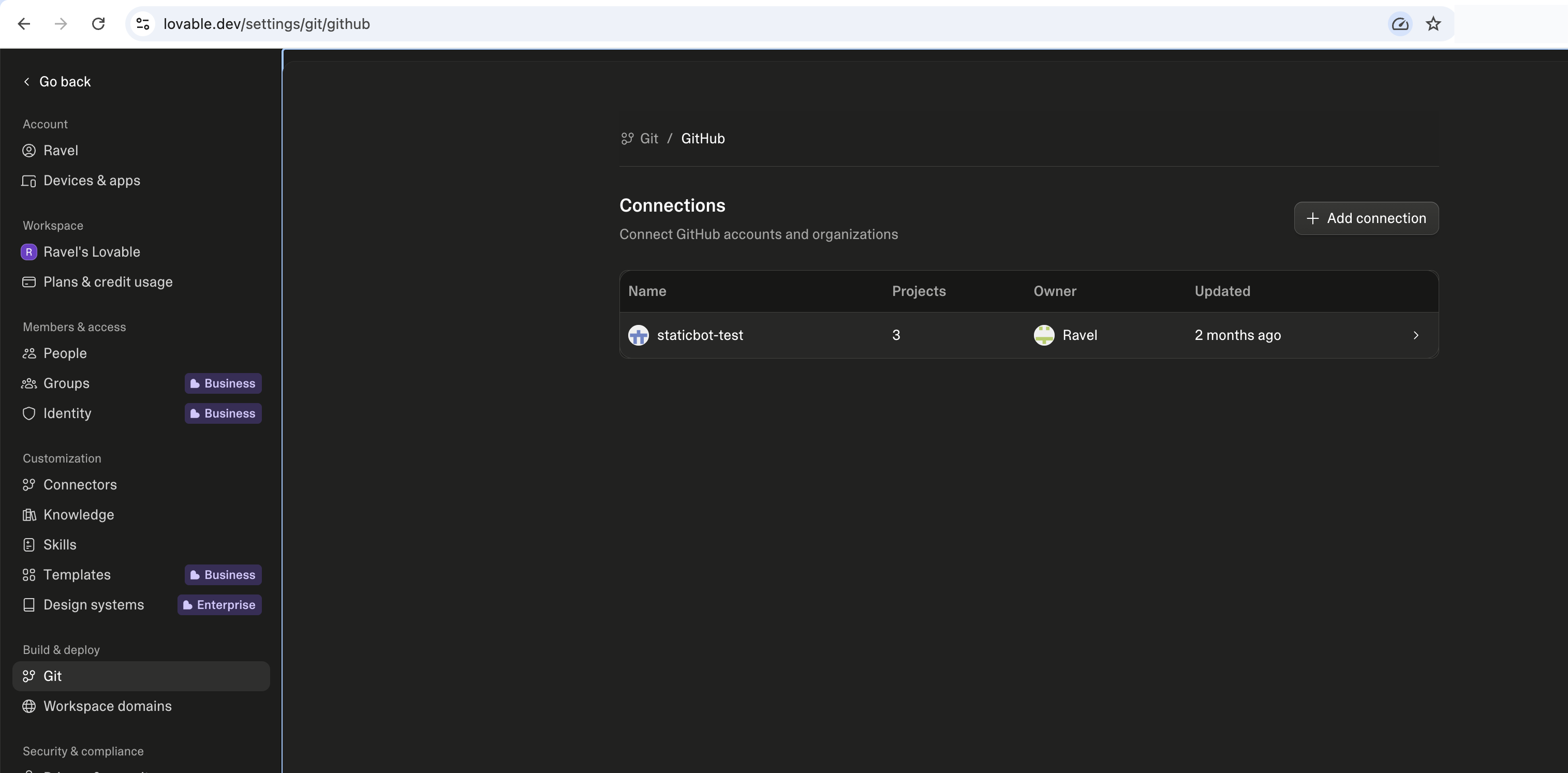
Staticbot reads your project via GitHub, so your Lovable project must be synced to a GitHub repository before you start a migration. Connect and authorize GitHub at lovable.dev/settings/git/github, then open your project and link it to a repository.
How do I migrate a Lovable app to Supabase?
Manual Migration
Follow 8 CLI steps to migrate your Supabase backend yourself. Full control, requires developer time.
Automated with Staticbot
RecommendedStaticbot handles the complex technical steps automatically. Schema, edge functions, storage, and auth — all in a guided dashboard.
Prefer to migrate from your terminal?
Use the Staticbot MCP server with Claude Code, Cursor, or any MCP-compatible AI agent. One prompt kicks off the entire migration.
Learn how to migrate via chatAutomate the hard parts of your migration
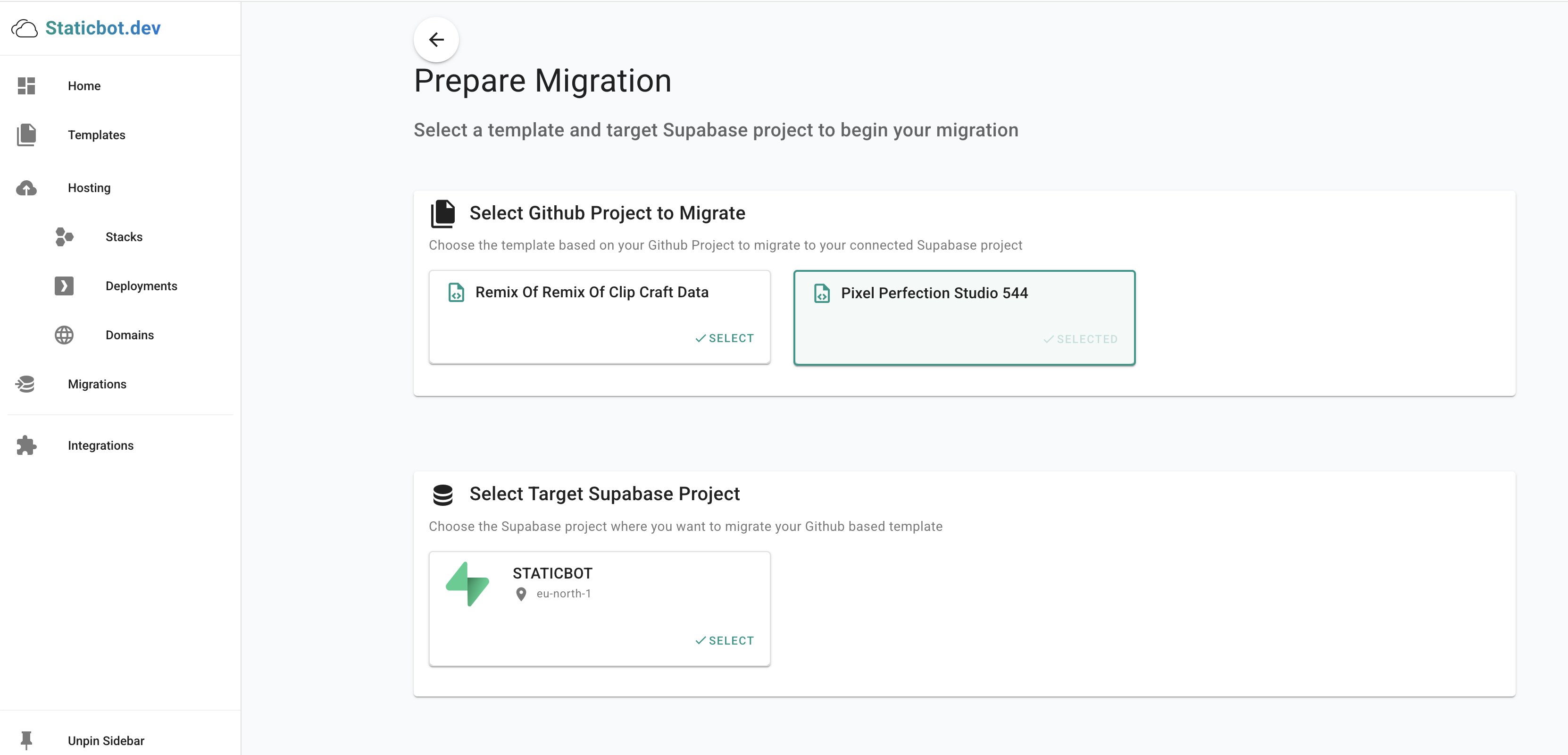
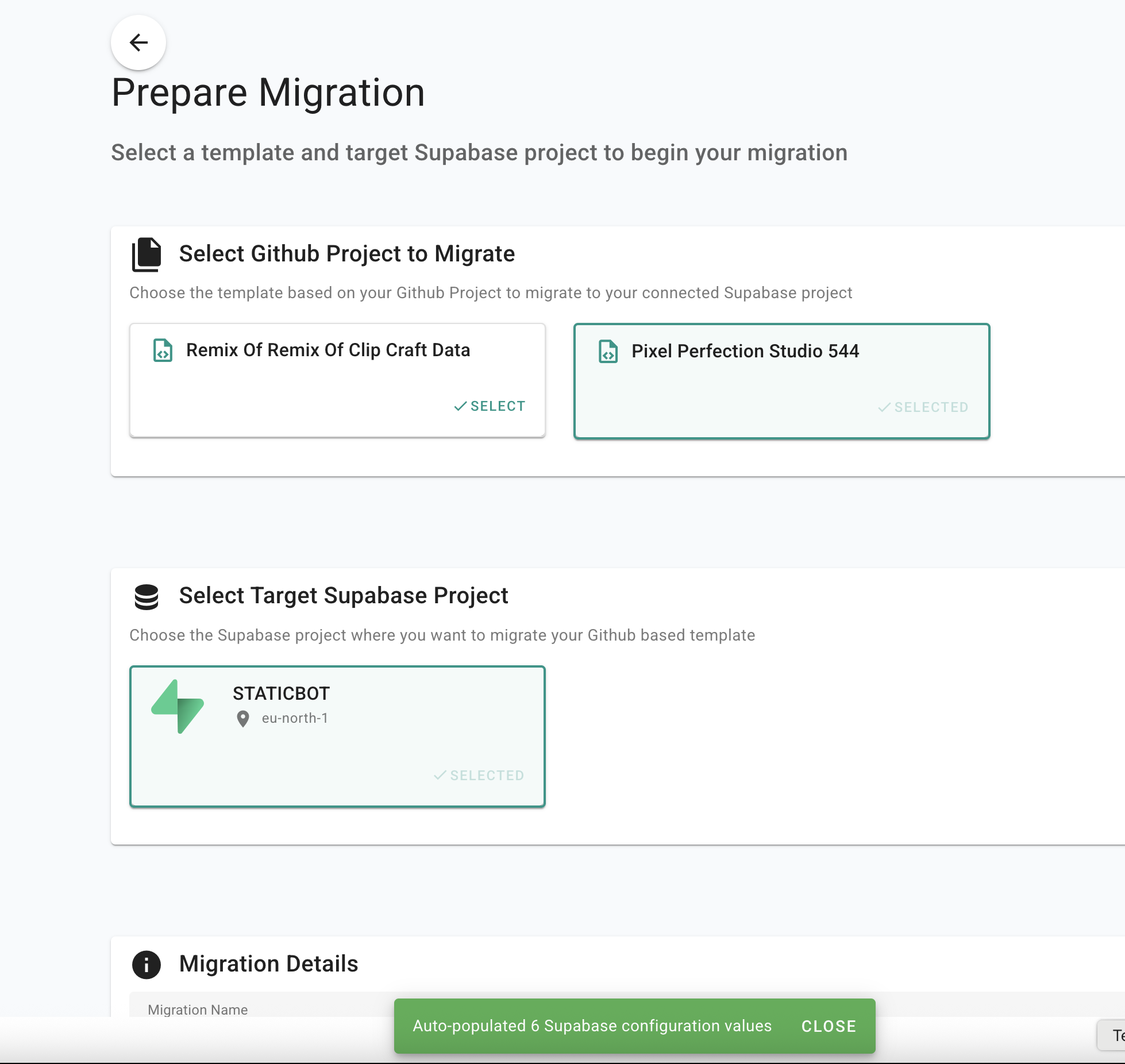
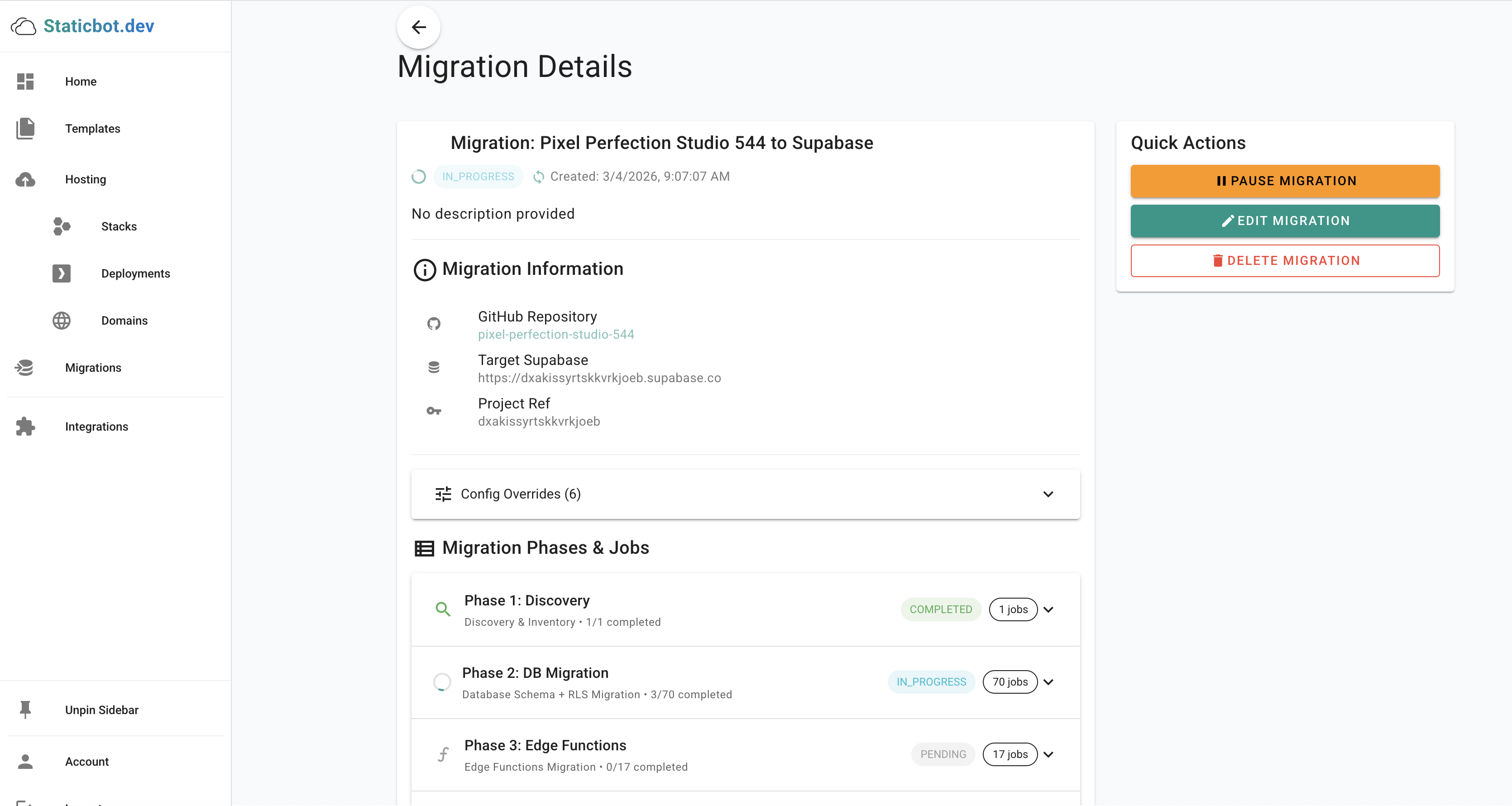
Instead of running CLI commands manually, Staticbot's Migration tool connects to your source Supabase project, discovers what needs to move, then executes each phase automatically — with full visibility into what's happening at every step.
Automatically inventories your source Supabase project
Applies your SQL migrations to the target instance
Deploys all server-side functions automatically
Recreates your storage bucket configuration
Migrates authentication settings and policies
Exports and imports your data between projects automatically
Deploys your migrated app to a working preview URL on managed infra — running against your own Supabase — and health-checks it, so you click through your real app before anything goes live
AI diagnoses failed jobs and suggests fixes you can apply in one click
Real-time status for every step of the migration
AI Troubleshooting
NewWhen a migration job fails, click the AI button to get an instant diagnosis. The AI analyzes the error, reads your migration files, and suggests a concrete fix — often a corrected SQL statement you can apply with one click.
- Analyzes error context and migration files
- Suggests corrected SQL you can review
- One-click apply and automatic retry
Automated Data Migration
NewNo more manual CSV exports and imports. Staticbot can automatically export data from your source Lovable project and import it into the target Supabase project — handling table dependencies and foreign key ordering for you.
- Automatic export from source project
- Dependency-aware import ordering
- No manual CSV handling required
"Staticbot completely automated my Lovable-to-Supabase migration, which had previously seemed like an overwhelming project. The automation performed flawlessly and saved me hours of work and a lot of stress, so I'm grateful to have this tool available for future projects."
-- Seth
Ready to Deploy the Frontend?
Now that your app is on your own Supabase backend, host the frontend on AWS with zero configuration using Staticbot.
View Lovable Deployment GuidePrefer the automated path?
Let Staticbot handle the migration for you
Staticbot handles the technical heavy lifting automatically. Connect your Supabase projects, confirm each phase in a dashboard, and you're done — no CLI required.
~15
minutes
2–3 hrs
manual
What gets automated
Lovable Migration FAQ
Related
- Deploy Lovable to Vercel — keep Lovable as editor, host the frontend on Vercel instead of AWS
- Lovable hosting — three setups compared
- Switch from Lovable to Base44 — take your app and users to Base44 on a Supabase you own (see also Lovable vs Base44)
- Self-hosted Supabase on AWS — for fully owning the backend infrastructure
- Lovable vs Bolt vs Supabase vs Vercel — real hosting costs in 2026