


Migrate from Base44 to Supabase
Base44 → Supabase migrations are currently free
No credit card. No current project-size limit. Self-service migrations are currently free on Staticbot; optional paid offerings include Supported Migration, managed hosting, and AI credit top-ups.
Move your Base44 app to a Supabase project you own — your users keep their accounts and sign in from day one.
Base44 is a first-class supported source platform in Staticbot. Both common Base44 architectures are covered: apps using Base44's managed entities and integrations via @base44/sdk (the platform default), and apps that have already been wired to their own Supabase project. Pick the variant that matches your app below and we'll walk you through what moves and how.
Either way you end up with a Supabase project you fully own, your existing users intact, and your data, functions, and storage moved over. (Accounts always come across; passwords carry over when your users already live in your own Supabase — for native Base44 apps, where Base44 keeps the hashes, we set up passwordless email sign-in instead, so nobody gets locked out.) Point your frontend at your own AWS or Cloudflare (or at Staticbot-managed AWS). Optionally keep building in Base44 afterward — Continuous Sync flows every push to your own production backend.
Pricing: Base44 · Supabase · Staticbot (free for Base44 migrations right now).
Prerequisite: connect your Base44 project to GitHub
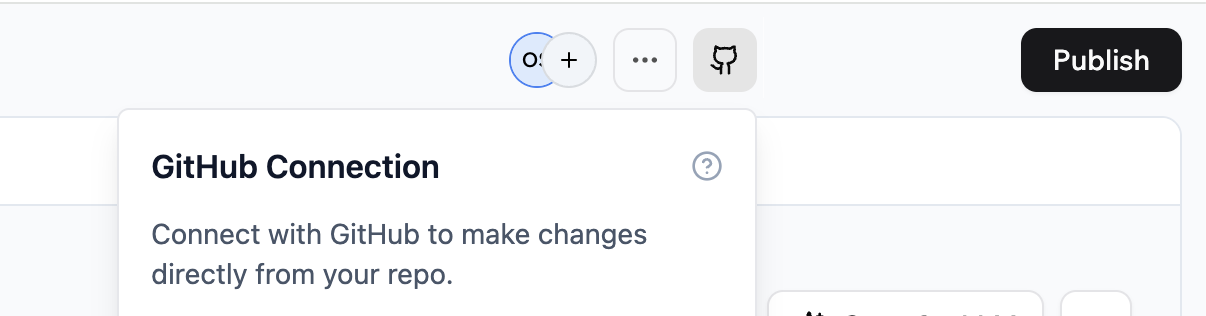
Staticbot reads your project via GitHub, so your Base44 app must be synced to a GitHub repository before you start a migration. Open your project dashboard, click the GitHub icon in the top panel, and follow the prompts to authorize and link a repository.
Want to know what moves and what doesn't before you migrate?
Staticbot runs a compatibility scan over your Base44 app during discovery and shows you a personalised report — every entity, every server function, every SDK call — grouped into three buckets: handled automatically, one-time setup, and needs your attention after migration. The same report ships inside the downloadable migration package as 00_compatibility_review.md, formatted so your AI assistant can take the punchlist and finish it in one prompt.
For a plain-English explanation of where Base44 and Supabase line up (and where they don't), read Base44 vs Supabase: what actually moves when you migrate.
First: which kind of Base44 app do you have?
A. Base44 with managed entities & integrations
Most commonYour app uses @base44/sdk with createClient({ appId, headers }). You define entities visually in Base44, call .entities.X in your code, and rely on Base44's Core.InvokeLLM / Core.UploadFile etc. for AI & file features. You do not own a Supabase project today.
How we handle it: Staticbot translates your Base44 entity schemas into Postgres tables on a fresh Supabase project, imports every row of entity data via Base44's REST API, and rewrites src/api/base44Client to a drop-in shim that maps every Base44 SDK call onto Supabase. Your app keeps calling .entities.X and Core.UploadFile exactly as before — only the backend changes.
Your users and the login screen come too. Base44 keeps password hashes on its platform and serves the sign-in page from its own side, so for a native app there's nothing to copy there. We move each account into Supabase Auth by email and regenerate a real login page (the one Base44 used to host) wired to your project — people sign in with a one-time email code or magic link from the first minute, and your OAuth providers slot in once you add your own keys. No auth to rebuild by hand.
Read the compatibility deep-dive to see exactly which Base44 features have a direct Supabase mapping, which need a one-time setting, and which need light wiring after migration.
B. Base44 already wired to your own Supabase
Your code uses @supabase/supabase-js with VITE_SUPABASE_URL set in Base44 platform secrets. Your data already lives in a Supabase project; Base44 is essentially your UI editor.
How we handle it: Staticbot reads your Base44 GitHub repo, auto-detects the source Supabase URL straight from the deployed bundle (no copy-paste from Base44 secrets), then moves your DB, edge functions, storage, vault secrets, cron jobs, and auth users — passwords intact — to a Supabase project you own. The final step is repointing Base44's platform secrets at the new project (we show the values with copy buttons; ~30 seconds).
The manual section further down covers this variant step by step if you prefer to drive it yourself.
Not sure which one applies? Open src/api/ in your repo. If you see base44Client.{js,ts} calling @base44/sdk, you're variant A. If you see supabase from @supabase/supabase-js with a VITE_SUPABASE_URL env, you're variant B. Both work — Staticbot detects which one you have during discovery.
Then: automated or manual?
Manual Migration
Use the Base44 CLI + Supabase CLI to dump, restore, and switch over yourself. Full control, no third-party tools touching your data. For variant B (already on your own Supabase). Variant A's entity translation + shim swap is too much to drive by hand — go automated for that.
Automated with Staticbot
RecommendedStaticbot detects your source Supabase from the deployed app and handles schema, data, edge functions, storage, and auth in a guided dashboard.
Automate the hard parts of your Base44 migration
Whether your app uses Base44's managed entities & SDK (variant A) or already has its own Supabase wired up (variant B), Staticbot inventories what needs to move, runs a compatibility scan, and executes each phase automatically — with full visibility into every step. For variant A we synthesise tables from your Base44 entity schemas, import every row via Base44's REST API, and swap src/api/base44Client for a drop-in shim so your code keeps working unchanged.
Personalised punchlist of what auto-translates, what needs one-time setup, what needs your attention — shown before you confirm
Deploys your migrated app to a working preview URL on managed infra — running against your own Supabase — and health-checks it. Click through your real app before you flip production over. Nothing goes live until you choose to
Variant A: translates your Base44 entity schemas into Postgres CREATE TABLE DDL on a fresh Supabase project
Variant B: reads VITE_SUPABASE_URL straight from your deployed *.base44.app bundle — no copy-paste from Base44 secrets
Applies schema (synthesised for A; from supabase/migrations/ for B) to your new target
Variant A: row-by-row via Base44 REST API. Variant B: full export via temporary edge function with FK-aware ordering
Variant A: ports Base44 backend functions onto Supabase Edge Functions with shim wiring. Variant B: deploys existing edge functions
Variant A: copies Base44 assets into a Supabase Storage bucket. Variant B: recreates buckets and copies files
Variant B: migrates users with bcrypt hashes intact. Variant A: sets up Supabase Auth accounts by email with passwordless sign-in (Base44 keeps the hashes) — nobody gets locked out
Variant A: rebuilds the sign-in page Base44 hosts on its own platform — as real code in your app, wired to your Supabase with magic-link / email-code login, so a migrated app can authenticate users on day one
Pushes a branch swapping @base44/sdk for the shim — your .entities.X / Core.UploadFile calls stay unchanged
AI diagnoses failed jobs and suggests fixes you apply in one click
Real-time status for every step of the migration
Variant A
Connecting an SDK-native Base44 app
Pick the Base44 integration on the migration form. You'll paste your Base44 appId and api_key from your app's Settings → API screen — Staticbot uses them to read your entity schemas and data through Base44's REST API. No source Supabase needed; Staticbot creates a fresh one as the target.
Phase 1 also runs a compatibility scan over your entities, server functions, and frontend SDK calls. You see exactly what's auto-handled, what needs a one-time setting, and what needs light wiring after migration — before you confirm.
Variant B
Connecting a Base44 app already on Supabase
Base44 stores VITE_SUPABASE_URL and VITE_SUPABASE_ANON_KEY as platform secrets — they're not in your GitHub .env. The migration form's "Detect from deployed URL" button fetches your deployed *.base44.app bundle and reads the Supabase URL + anon key Vite inlined at build time. No copy-paste from Base44 secrets UI required.
From there it's a standard Supabase-to-Supabase migration: schema, data (with bcrypt password hashes intact), edge functions, storage, vault secrets, cron jobs, OAuth identities — all moved to a Supabase project you own.
The switchover — how your live app starts using the new backend
Variant A (SDK-native): Staticbot pushes a branch to your GitHub repo that swaps @base44/sdk for the @staticbot/base44-supabase-shim, rewrites src/api/base44Client to point at your new Supabase, and patches package.json + .env.production. Your code's .entities.X / auth.me() / Core.UploadFile calls stay byte-identical — the shim translates them onto Supabase at runtime. Review the PR, merge, deploy.
Variant B (BYO-Supabase): Base44 reads VITE_* from its platform secrets store, not the repo. Staticbot shows the new target URL + anon key with copy buttons — paste them into Base44's secrets UI (or ask Base44's AI to "update secrets to these values"), then redeploy. ~30 seconds.
How discovery + data export work
Variant A (SDK-native): discovery hits Base44's REST API directly using your appId + api_key to fetch entity schemas, then translates them to Postgres CREATE TABLE DDL. Data import calls Base44's REST API page-by-page and writes rows into your new Supabase. No chat prompts, no waiting on platform deploys.
Variant B (BYO-Supabase): Staticbot commits a temporary staticbot-export-<id> edge function to your repo so it can read directly from your source Supabase. Base44 needs to deploy it before the export can run — the migration pauses and shows the exact chat prompt to paste into Base44 (e.g. deploy edge function staticbot-export-abc12345). Once Base44 confirms, click Validate → Done — Synced and the export resumes. The function is removed by a cleanup job at the end.
AI Troubleshooting
When a migration job fails, click the AI button to get an instant diagnosis. The AI reads the error, your migration files, and your repo context, and suggests a concrete fix — often a corrected SQL statement you apply with one click.
- Analyzes error context and migration files
- Suggests corrected SQL you can review
- One-click apply and automatic retry
Automated Data Migration
No CSV exports. No manual table ordering. Staticbot exports data from your source Supabase via the temporary edge function and imports into the target, handling foreign-key dependencies for you.
- Automatic export from source project
- Dependency-aware import ordering
- Storage buckets + files copied too
The pipeline, end to end
Phase numbers and stage names match what you see in the Staticbot dashboard. Variant A and variant B share the discovery + compatibility scan up front, then diverge through phases 2–7 because the source-of-truth is different — Base44's REST API vs. a customer Supabase project.
Variant A — SDK-native
- 1Discovery — fetch entity schemas, server functions, auth config, and assets via Base44's REST API. Run compatibility scan over entities + functions + your frontend code.
- 2DDL synthesis — translate each Base44 entity schema into a Postgres
CREATE TABLEwith the right column types & constraints. - 3Data import — one job per non-skipped entity, chained linearly so Base44 isn't slammed with concurrent fetches. Page-by-page via the REST API into your new Supabase.
- 4Server functions — port each Base44 backend function to a Supabase Edge Function (with a small codemod for the import +
createClientswap). - 5Storage / assets — copy Base44 assets to a Supabase Storage bucket so your
media.base44.com/...URLs keep resolving. - 6Auth config — translate Base44's auth toggles (email/password, OAuth providers) into the matching Supabase Auth settings. OAuth client_secrets land in your one-time setup punchlist.
- 7Shim switchover — push a branch to your repo swapping
@base44/sdkfor the shim, rewritingsrc/api/base44Client, and patching.env.production. Review the PR & merge. - 8Next steps + downloadable package — frontend deploy options and a password-protected ZIP including
00_compatibility_review.mdfor your AI assistant.
Variant B — BYO-Supabase
- 1Discovery — read your repo and source Supabase to inventory tables, edge functions, storage buckets, auth providers, secrets, and cron jobs.
- 2DB migration — SQL files in
supabase/migrations/applied to your target. - 3Data import — temporary edge function commits to repo → Base44 deploys it (one chat prompt) → Staticbot calls it to export + import data, copy storage objects, migrate vault secrets, cron jobs, and OAuth identities.
- 4Edge functions deployed to your target Supabase.
- 5Storage buckets recreated (idempotent — usually already exist from Phase 3).
- 6Auth config migrated — providers, redirect URLs, JWT settings.
- 7Live cutover only: update Base44 secrets if keeping its frontend — Skip this during rehearsal. After the write freeze, final copy, and verification, use the target URL and anon key for the production frontend you intend to keep. If leaving Base44 hosting, configure your new host instead.
- 8Continuous sync + frontend deploy — enable webhook-driven sync so every Base44 push lands on your own Supabase + AWS automatically.
Prefer the automated path?
Let Staticbot handle the migration for you — free
Skip the CLI dance: paste your *.base44.app URL, confirm each phase in a dashboard, done. Base44 migrations are currently free.
~15
minutes
2–3 hrs
manual
Migrate your Base44 app today
Connect your GitHub repo, paste your *.base44.app URL for auto-detect, and walk through the migration in a guided dashboard.
FAQ
Related
- Base44 vs Supabase: what actually moves when you migrate — feature-by-feature compatibility deep-dive + compatibility-review explainer
- Continuous Sync — optionally keep editing in Base44, sync every push to your own Supabase + AWS or Cloudflare
- Lovable → Supabase migration — same pipeline for Lovable apps
- Switch from Base44 to Lovable — migrate onto your own Supabase, then keep building in Lovable (see also Lovable vs Base44)
- Self-hosted Supabase on AWS — for fully owning the backend
- AI Builder Migration — all builders