

Deploy from Base44 with Staticbot
This guide will show you how to host your project built with Base44 on AWS S3 and Cloudfront using Staticbot.
1Connect Your App to GitHub
To deploy with Staticbot, you need to connect your Base44 app to a GitHub repository.
Connect to GitHub
Connecting GitHub happens directly from your project dashboard:
- Open the app you want to connect in your Base44 dashboard
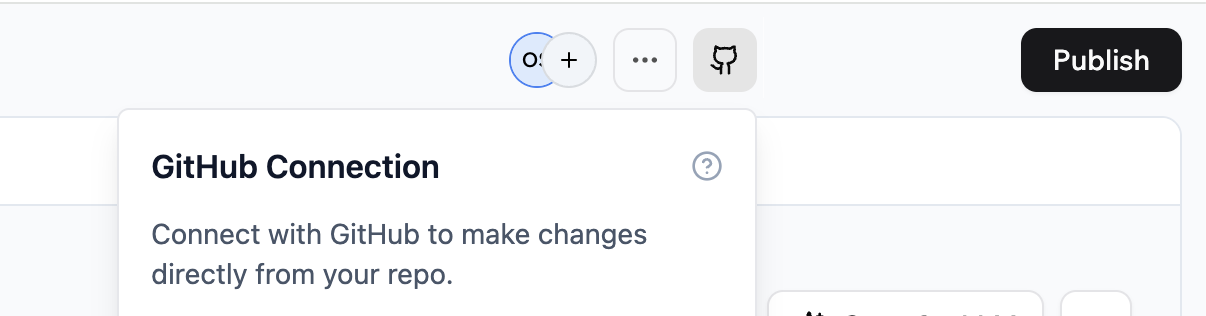
- Click the GitHub icon in the top panel
- Select "Connect to GitHub" and authorize Base44 Builder
- Choose or create a repository for your app
2Start Syncing
With your app connected to GitHub, you can now start syncing your code.
Export your app to GitHub
Enable 2-Way Sync
Enable 2-Way Sync so changes in Base44 and GitHub stay aligned automatically
3Deploy with Staticbot
With your project on GitHub, you can now use Staticbot to set up automated deployment.
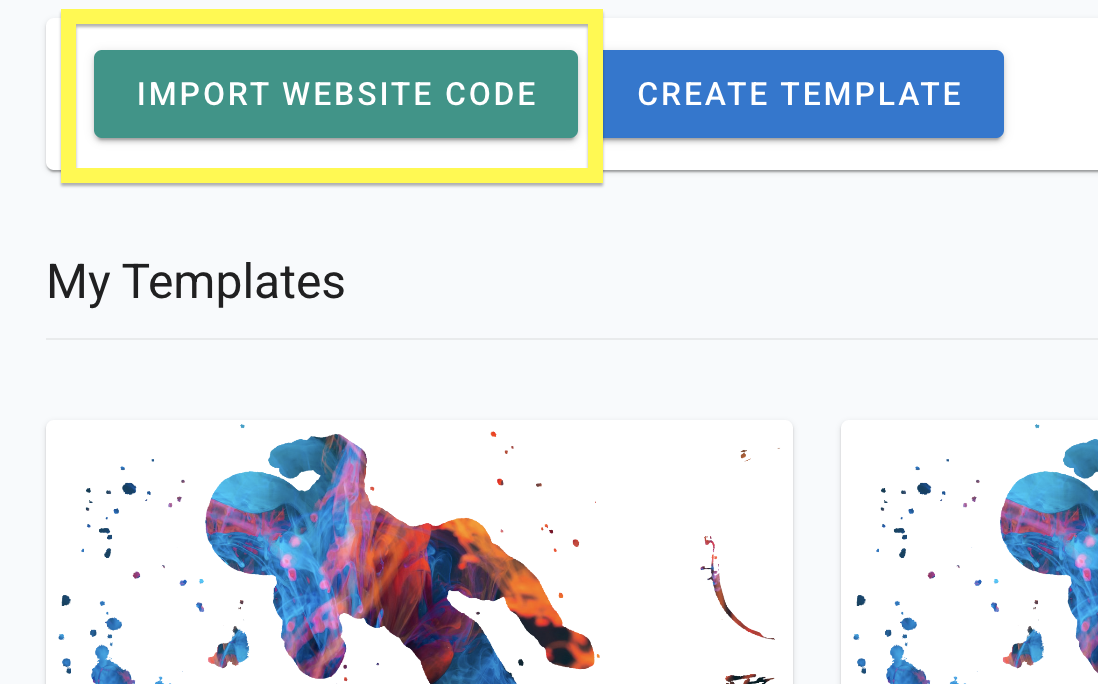
Import Your Project's Code
Paste your GitHub repo link. This will create a Template with your codebase.
Migrate your backend to Supabase
If your Base44 app uses a database, authentication, or server logic, move those off Base44's managed backend into your own Supabase project before you launch — otherwise your deployed app won't have a backend to talk to.
Launch — AWS or Cloudflare, depending on your project
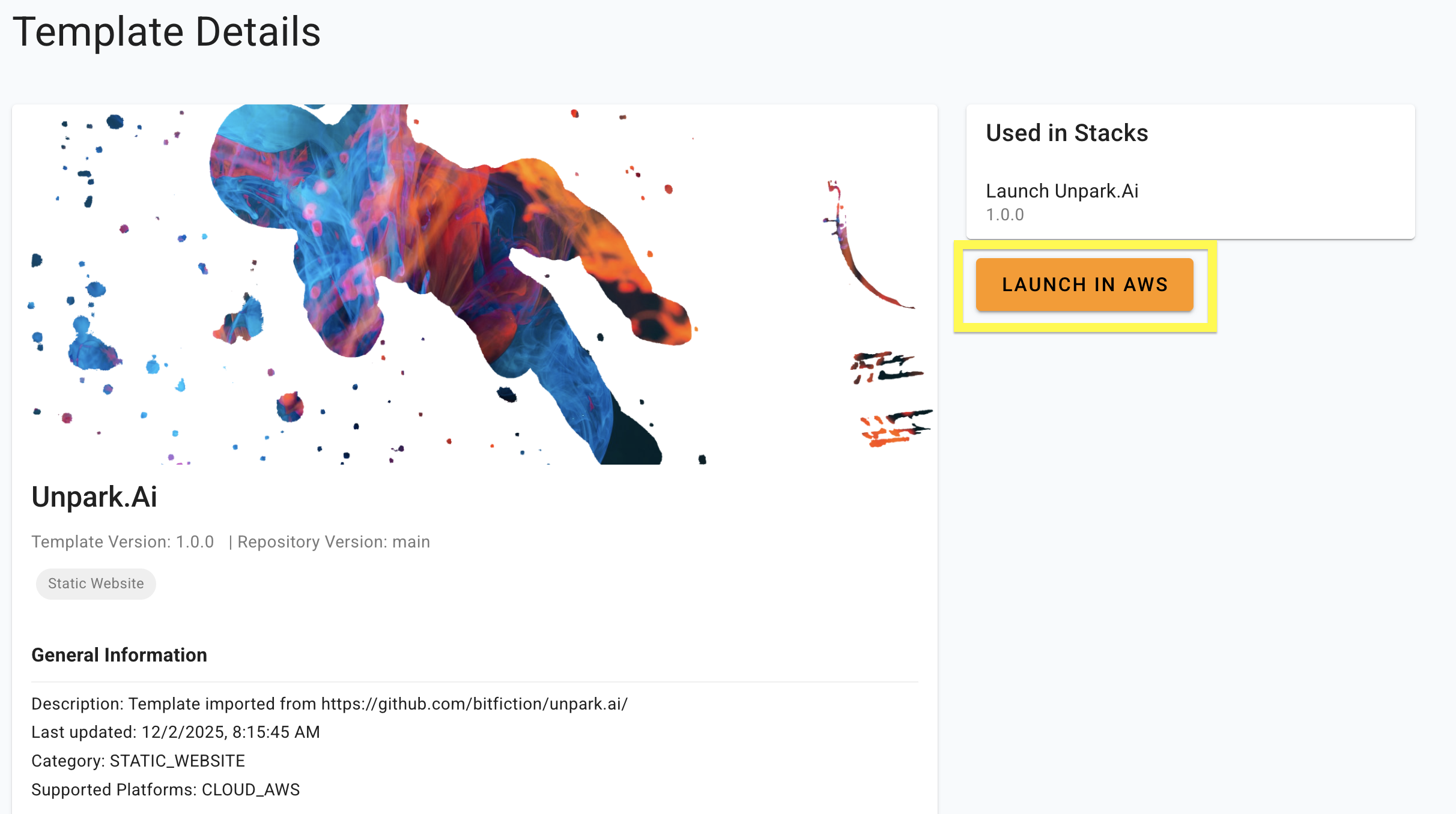
Staticbot auto-detects what kind of project you have and shows the right launch button:
Classic Vite + React, plain HTML, or any pre-built static bundle. Deploys to AWS S3 + CloudFront — your AWS account or Staticbot-managed.
TanStack Start (Lovable's new default), Nuxt 3, SolidStart, Astro with the CF adapter, or any app that builds for Cloudflare Workers. Deploys to a Staticbot-managed Cloudflare account. read more
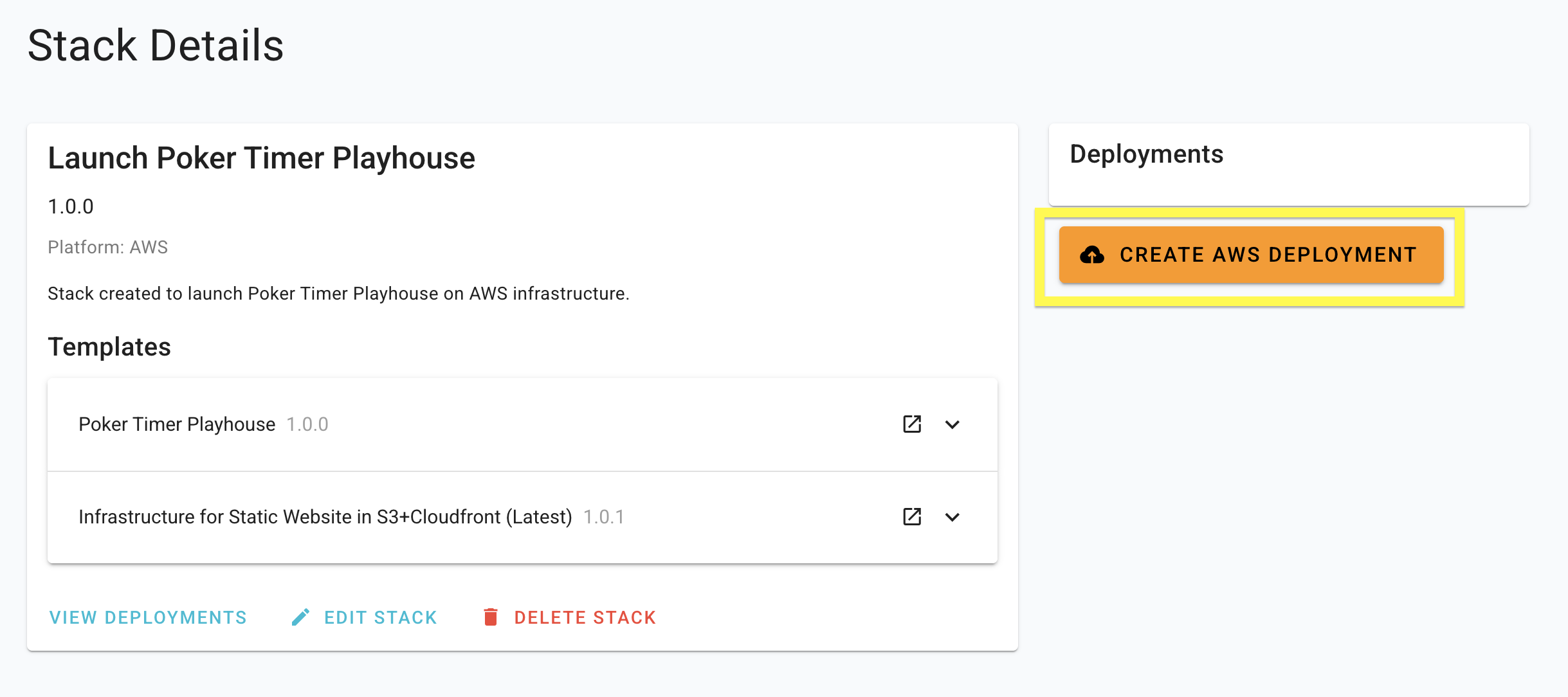
The screenshot below shows the older "Launch in AWS" button. The dashboard now picks the right target for you — newer screenshots coming.
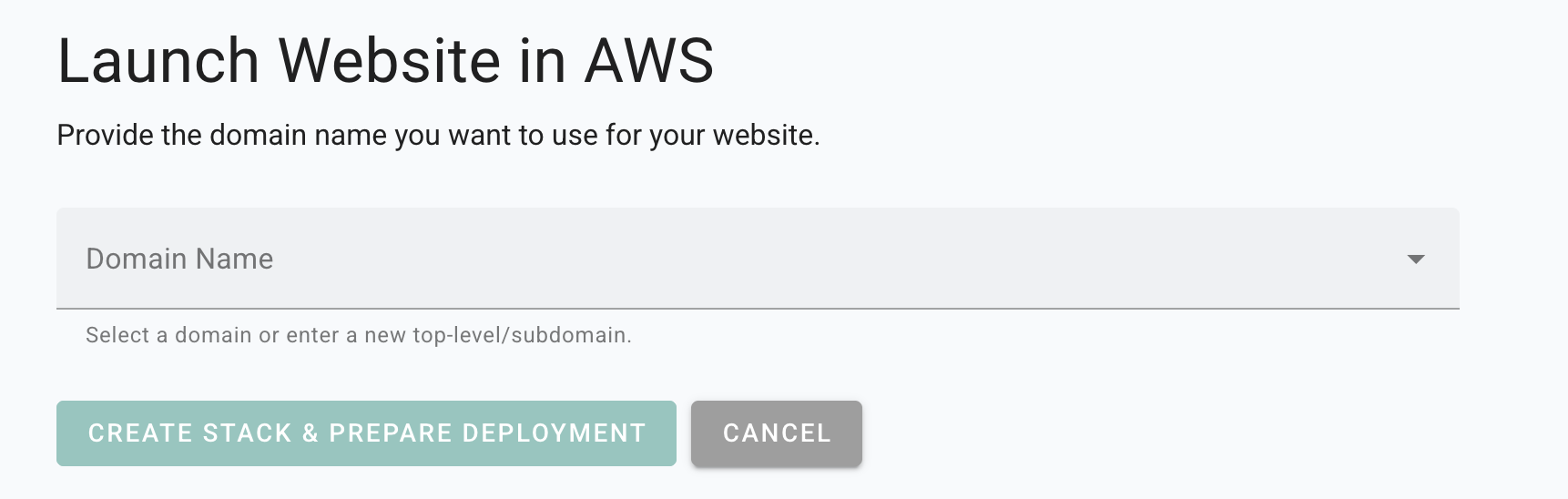
Enter the Domain
Staticbot will provide instructions to point the domain to your website.
Deploy
Staticbot will provision the Stack you created, first creating or updating the necessary infrastructure and then rolling out your website on top of it.
4Visit Your Web App
Deployment Complete
Staticbot will provide a live URL. Your Base44 project is now live on AWS infrastructure!
No Vendor Lock-in
Staticbot is built on transparency. If you choose to deploy to your own AWS account, the complete Terraform code is placed in an S3 bucket in your account.